


Koi AI - AI Video Generator
3.864.00 Reviews
App Specs
- Version
- 1.0.6
- Updated On
- License
- Free
- Downloads
- 100,000+
- Developer
- POLYVERSE INC.
- Categories
- Photography
- Platform
- Android
Screenshots
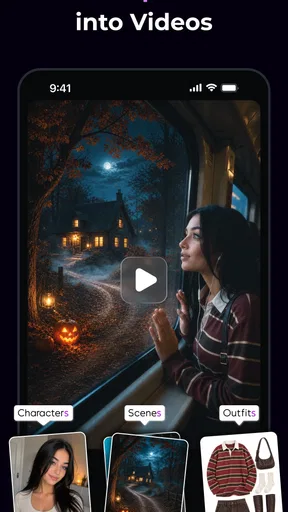
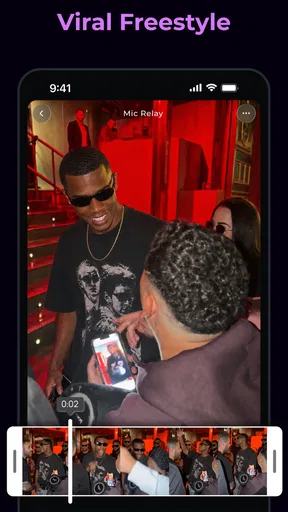
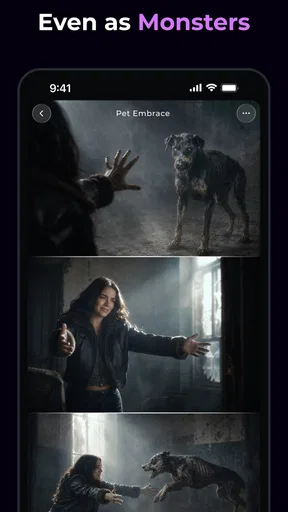
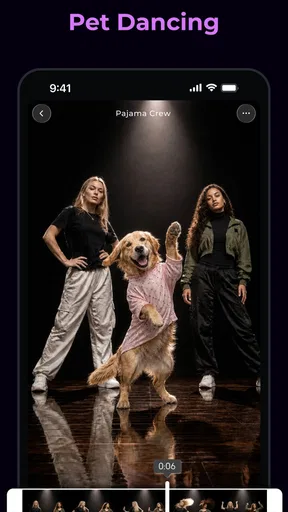
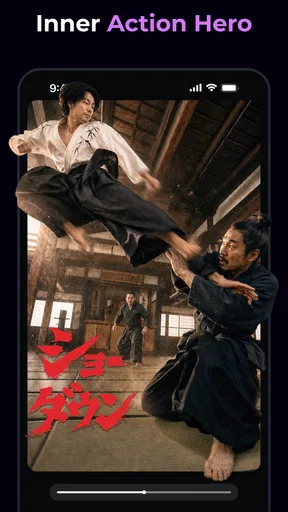
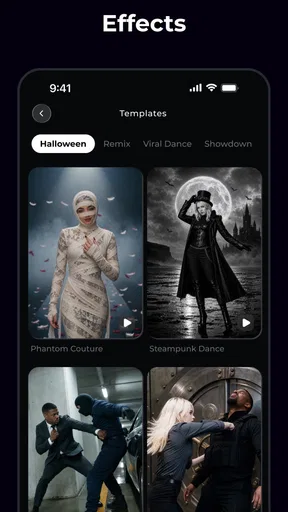
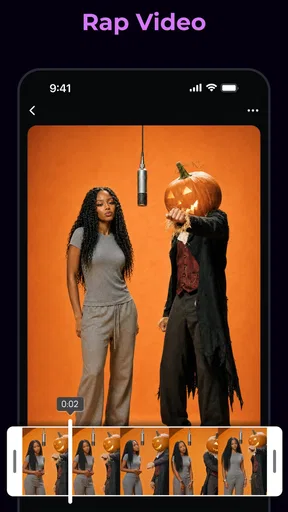
 Analysis by AppCompare
I tried Koi AI as a photography app built around AI-generated video, and my first impression was that it is aimed at people who want to turn a rough visual idea into something more dynamic without opening a full desktop editor. That makes it interesting for quick social posts, mood pieces, visual experiments, and simple concept work. It is free to install, although in-app purchases range from $1.99 to $99.99 per item, so I would approach it as a low-barrier starting point rather than assuming every useful workflow is included at no cost.
The app comes from POLYVERSE INC. and is listed for Teen users. It has reached over 100K installs, with a 3.8 average from around 374 ratings and 63 reviews. Those numbers suggest a real but still relatively modest user base, which is useful context: I would not expect the same level of maturity, documentation, or community troubleshooting that surrounds long-established video editors.
What using Koi AI feels like in practice
The central appeal is simple: I can begin with an idea rather than a finished video. Instead of collecting several clips, trimming them, adding transitions, and then searching for effects, an AI video generator is supposed to help bridge the gap between a mental image and a shareable result. That is especially appealing when the goal is atmosphere rather than precise storytelling.
For example, imagine I want a short visual for a weekend photo post. I may have a picture of a rainy street, a product shot, or a landscape that feels static on its own. Koi AI is the kind of tool I would test when I want to explore motion, mood, or a more cinematic presentation without spending an hour learning a conventional timeline. The useful question is not whether it replaces a professional editor. It does not. The useful question is whether it helps me get from “I have an idea” to “I have something worth showing” with less effort.
That distinction matters because AI-generated video can be impressive in a glance but less convincing when watched closely. A result may capture the general feeling I wanted while missing the exact movement, timing, or visual detail in my head. I therefore treat each generation as a draft. I look for a strong opening frame, check whether the motion feels natural, and decide whether the output works as a short visual rather than judging it against a finished commercial production.
Where the app fits among familiar alternatives
Traditional mobile editors are better when I already have the footage and know exactly what I want to do with it. They give me direct control over cuts, speed, sound, text placement, and timing. Koi AI is more attractive at the earlier stage, when I have a concept, an image, or a visual direction but not a complete sequence.
That makes the comparison less about which app is universally better and more about the kind of control I need. A standard editor rewards patience and precision. Koi AI appears designed for exploration and speed. If I am making a carefully timed tutorial, a family video with important moments in a specific order, or a client project where every frame must be predictable, I would choose the conventional editor. If I am testing several creative directions for a short post, the AI approach can be more stimulating.
Worth Reading Before You Choose

Flipboard Shows What News Apps Must Do Beyond the Feed

Switching to Android Auto Means Rethinking Your Driving Routine

Google Calendar Makes a Crowded Week Easier to Manage

Ludo King Makes the Most of the Minutes Between Plans

Baby Panda World Brings Quick Play to Modern Phones, but Its Game Library Feels Busy

ESPN’s Live Game View Makes Following Close Games Easier
I also would not use it as my only tool for serious finishing. My preferred workflow is to generate or explore an idea here, then move to a familiar editor when I need exact trimming, captions, audio balancing, branding, or a consistent series of scenes. That two-step approach reduces frustration because I am not asking an AI tool to perform a job that a timeline editor handles more reliably.
Three practical habits that improve the experience
My first useful habit is to start with one clear visual intention instead of combining several unrelated ideas. A request that tries to describe a location, a character, a camera move, a lighting style, and a story beat all at once is more likely to produce an unfocused result. I get better creative direction by deciding what matters most: gentle movement, a dramatic mood, a product reveal, or a transformation from still image to video.
My second habit is to judge the first frame and the final moment separately. AI video can look promising in the middle while beginning abruptly or ending without a satisfying visual pause. For social sharing, those edges matter because viewers often decide quickly whether to continue watching. I would make several small experiments and keep the one with the cleanest start and finish rather than automatically choosing the most dramatic-looking generation.
My third habit is to keep source material organized before I begin. I would create a small set of images with similar lighting and subject matter instead of mixing unrelated photos. This is not a glamorous feature, but it is an important workflow decision: consistent source material makes it easier to compare outputs and recognize whether a change in the idea helped. It also prevents me from blaming the app when the real problem is that the starting images do not belong together.
Trust starts with what the app visibly lets me control
For an AI photography tool, I pay attention to more than visual quality. I want to know what I am choosing before I submit an image, what I can review before sharing, and whether I can stop a workflow without feeling pushed into a purchase. I would take time to read each visible prompt, permission request, upload choice, and confirmation screen rather than tapping through automatically.
The app’s free entry point makes that first inspection easier because I can explore the basic experience before deciding whether it belongs in my regular toolkit. At the same time, the broad range of possible in-app purchase amounts means I would be careful around upgrade screens. I would check exactly what an item unlocks, whether it is a one-time purchase or part of a larger usage system, and whether the result is worth paying for before confirming anything.
I also prefer keeping my first tests low-risk. I would begin with an image that contains no private documents, identifiable personal information, confidential work, or other material I would regret uploading. That is not a claim about how Koi AI handles data; it is simply a sensible habit whenever an app asks me to use personal media in an AI workflow. Trust is stronger when I make deliberate choices instead of treating every photo as disposable.
Data-sensitive moments deserve extra attention
Photography apps can involve personal content even when the final result looks harmless. A casual portrait may include other people, a home interior may reveal where I live, and a product image may expose work that is not ready for public use. I would therefore separate my creative testing from sensitive projects. A generic landscape or a deliberately prepared sample image is a better first experiment than a private family album.
I would also pause before granting access to a broad photo library if the app offers a narrower selection. Choosing individual images is a better fit for a one-off experiment than opening an entire collection. When an operating system presents permission choices, I look for the most limited option that still lets me complete the task. That gives me more control over what enters the workflow and makes future cleanup less complicated.
Another important moment comes at sharing. I would review the generated video before posting it, not only for quality but also for accidental details carried over from the source image. If a background contains a name, address, screen, license plate, or recognizable person, I would remove or replace the material before publishing. AI movement can draw attention to parts of an image I might have ignored in the original still, so a careful final check is worthwhile.
Account choices and purchase decisions
When I install a creative app, I want to understand whether an account is necessary for the part I intend to use. If Koi AI presents a sign-in request, I would read the screen carefully and distinguish between an optional account, a feature-specific requirement, and a purchase-related prompt. I would avoid creating an account simply because the button is more prominent than the alternative.
The same cautious approach applies to purchases. Since the app is free but offers paid items, I would decide on a spending limit before experimenting. I would not buy a large package just to see whether the style suits me. A small, clearly described purchase is easier to evaluate, while an expensive commitment makes sense only after I understand the quality, repeatability, and usefulness of the results in my own workflow.
I would also keep control of the final files. Before deleting source images or closing another editor, I would confirm that the generated video has been saved where I expect it and can be opened outside the app. This is a practical form of user agency: a creative tool is more useful when it helps me retain the work I made instead of leaving me uncertain about where the finished result lives.
Who will appreciate it most
I think Koi AI is best suited to casual creators, visual storytellers, social media users, and photographers who want to animate an idea without learning a complex editing interface first. It may also appeal to someone who enjoys iteration: trying a concept, comparing a few directions, and keeping the version with the strongest mood.
It is particularly useful when the content does not need strict factual continuity. A dreamy travel image, a stylized announcement, a visual background, or a short mood clip can tolerate some creative interpretation. In those situations, the unpredictability of AI may feel like part of the process rather than a defect.
I would be more cautious recommending it to people who need exact control. A professional editor working to a brief, a teacher preparing a precise instructional sequence, or a user creating a memory video with carefully selected real footage may be happier with a standard timeline app. The more important timing and factual detail become, the less comfortable I am relying on generated motion.
What I would test before making it a regular tool
Before building a routine around Koi AI, I would run a small personal trial. I would use the same source image for several creative attempts, note how much adjustment is needed, and compare the outputs with what I could make in my usual editor. I would pay attention to consistency, export convenience, visible purchase prompts, and how clearly the app explains each step.
I would also test an ordinary everyday scenario rather than an idealized one. For instance, I might take a single photo from a walk, create a short atmospheric version for a private message, and then see whether the result is easy to save and share. That reveals more than a spectacular test image because it shows whether the app fits into a normal routine. If the process is quick and the output adds genuine interest, the app earns a place in my creative toolbox. If I spend more time correcting odd motion than enjoying the result, a conventional editor is the better choice.
The current version is 1.0.6, so I would keep my expectations measured. A newer app can be enjoyable while still having rough edges in navigation, generation consistency, or the way paid options are explained. I would update carefully, revisit the visible controls after major changes, and avoid assuming that a familiar screen will always work the same way.
My cautious verdict
I see Koi AI as a promising experimentation app rather than a complete replacement for mobile video editing. Its strongest idea is giving a photographer or casual creator a faster path from a still concept to a moving visual. That can be genuinely useful when inspiration matters more than frame-by-frame control.
My recommendation comes with boundaries. Start with non-sensitive images, choose the narrowest permissions that let you work, inspect account and purchase screens, and treat every generated clip as a draft until you have reviewed it carefully. I would not pay heavily before confirming that the output quality and workflow match my needs, especially because individual in-app purchases can reach a substantial amount.
For someone who wants quick visual experiments and is comfortable with AI’s imperfect interpretation, the free starting point makes Koi AI worth trying. For someone who needs predictable editing, detailed privacy choices, or professional-level control over every frame, I would stay with a conventional video editor. The app is most convincing when used as an idea generator, not as the final authority over the finished video.
Pros
- Creates short AI videos from simple text prompts.
- Useful for testing creative ideas without advanced editing skills.
- Can help produce social media content quickly.
- Offers an accessible way to experiment with AI video effects.
- Reduces the need for costly video production tools.
Cons
- Results may vary noticeably depending on the prompt’s wording.
- Generated characters and objects can sometimes look unnatural.
- Video generation may take longer during busy periods.
- Advanced customization options may be limited for experienced creators.
- Some features or exports may require a paid plan or credits.
FAQs for Koi AI - AI Video Generator
What is Koi AI - AI Video Generator, and what can it do?
Koi AI - AI Video Generator is an artificial intelligence app designed to create short videos from written prompts, images, or other user-provided ideas. Depending on the available tools and subscription level, it may generate animated scenes, stylized clips, social media content, or visual effects. Results can vary, so detailed prompts and clear reference images usually produce more consistent videos.
Is Koi AI - AI Video Generator free to use?
Koi AI may be available to download for free, but some generation tools, export options, higher resolutions, or faster processing can require in-app purchases or a subscription. Before creating multiple videos, check the current pricing, credit system, trial conditions, and renewal terms in the app store listing. Free access may also include limits, watermarks, advertisements, or reduced output quality.
Does Koi AI require an internet connection or a powerful phone?
Because video generation is generally processed through cloud-based artificial intelligence servers, Koi AI usually requires a stable internet connection to submit prompts, upload images, and download completed results. A newer phone can make navigation and previewing smoother, but the main generation work may happen online. Mobile data usage can be significant, particularly when uploading high-resolution images or downloading several videos.
Can videos created with Koi AI be used commercially?
Commercial usage depends on Koi AI’s current terms of service, the plan used to generate the content, and the rights associated with any uploaded images, music, characters, or third-party material. Do not assume that every free-plan result is cleared for advertising, client work, or monetized social media. Review the app’s licensing rules carefully and use only content for which you have appropriate permission.
Is Koi AI safe for uploading personal photos and creative ideas?
Before uploading personal photographs, documents, or private creative material, users should review Koi AI’s privacy policy and understand how content may be stored, processed, or used to improve its services. Avoid submitting sensitive information, images of other people without consent, or confidential work. It is also wise to check deletion controls, account settings, and whether generated or uploaded files remain accessible after removing them from the app.


